
Webhook Alerts Enterprise
For Community Edition push forwarding, see API & Redis.
Configure webhooks from Settings > Integrations > Webhooks.
Add a webhook
- Go to Settings > Integrations > Webhooks
- Click Add webhook
- Select the type: Custom, Slack, Teams, Splunk, or SEKOIA
- Set a name, namespace scope, and trigger action (Incidents or Events - availability depends on type)
- Enter the URL (and token for Splunk or SEKOIA)
- Save
Use Send test event from the row menu to verify delivery.
Sekoia
For the native SEKOIA intake, see the dedicated Sekoia guide.
Microsoft Teams
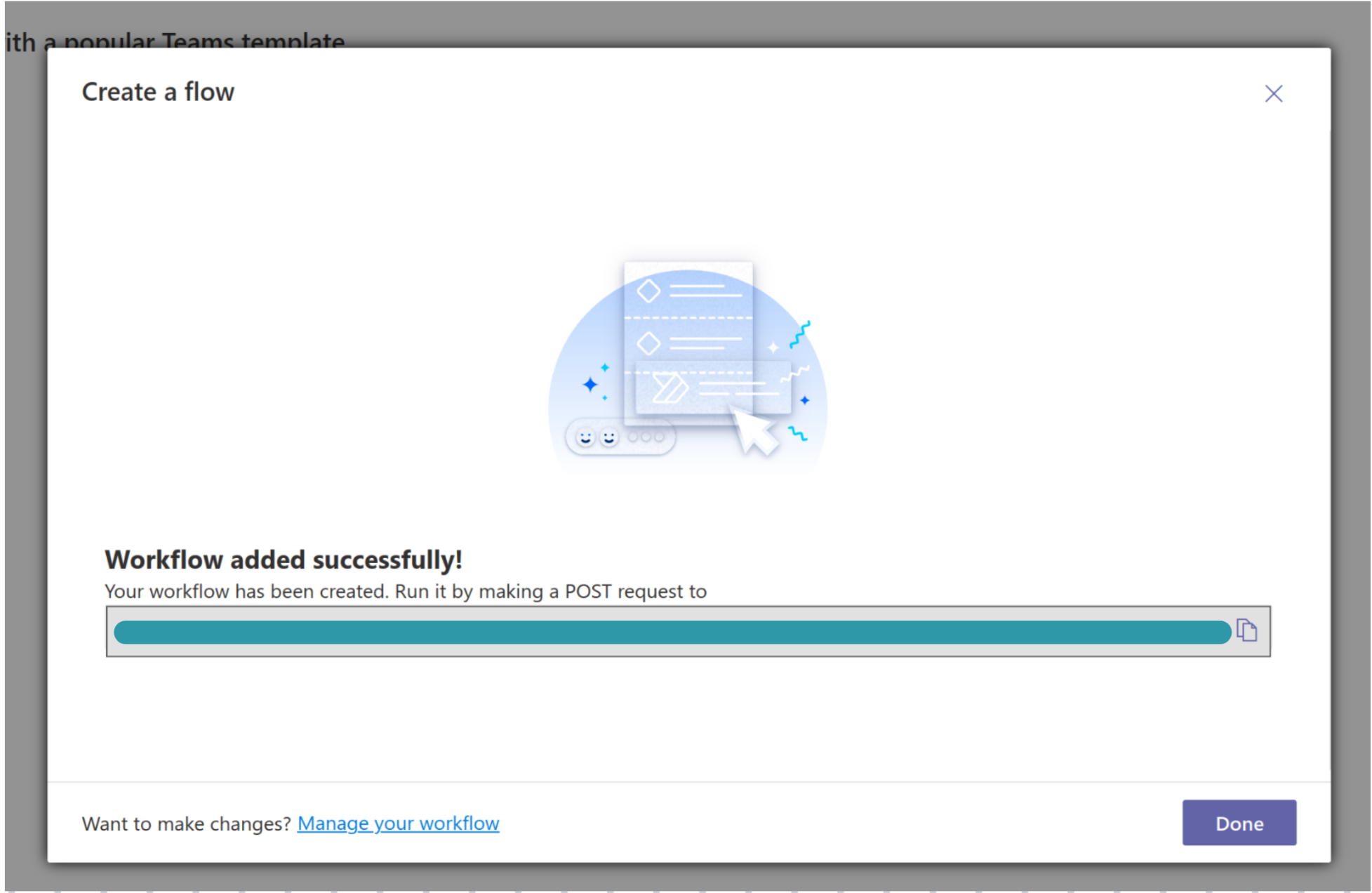
1. Create a Teams workflow
In Microsoft Teams, go to Workflows and search for:
Post to a channel when a webhook request is received from tenant users
Name your flow and select the channel where Trapster notifications should appear. Copy the webhook URL at the end of setup.
2. Allow external requests (optional)
By default, the flow only accepts requests from your tenant. To allow Trapster:
- From Workflows Home, open your flow for editing
- Open When a Teams webhook request is received
- Set Who can trigger the flow? to Anyone
- Save
3. Connect to Trapster
In Settings > Integrations > Webhooks, add a webhook with type Teams and paste the URL.
Slack
Add a webhook with type Slack and paste your Slack incoming webhook URL. Slack webhooks trigger on Incidents only.
Custom webhook
Select Custom and provide any HTTP endpoint. Trapster POSTs the incident or event JSON in the request body.