
Installation Troubleshooting
Enterprise Edition Enterprise
Trapster not appearing in dashboard
- Verify the Trapster has a routable IP on your network
- Check outbound HTTPS connectivity:
curl -I https://trapster.cloud - If using a static IP, confirm the network configuration was saved correctly (click Enable static IP before rebooting)
- Wait 2-3 minutes after boot for the sync to complete
- Open Trapsters and click Accept on the pending device if it has not been registered yet
Trapster boots but shows no activity in dashboard
For VM, must check IP, netmask, gateway and DNS in Menu Trapster -> Network Configuration
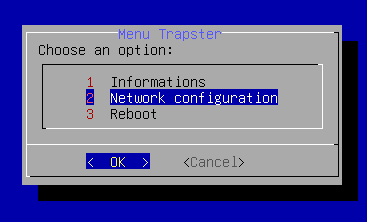
If this fails, check your firewall rules, outbound port 443 to <domain_id>.trapster.cloud must be allowed.
Community Edition Community
Docker: container exits immediately
Check the logs:
bash
docker compose logsCommon causes:
- Port already in use - another process is using the configured port. Change the port in
trapster.confor stop the conflicting process. - Invalid JSON in config - validate your
trapster.confwithpython3 -m json.tool trapster/data/trapster.conf - Missing config file - ensure the file exists at the path specified with
-c
Permission denied on ports below 1024
By default, non-root processes cannot bind to ports 1 - 1023. Either:
bash
# Grant capability to the Python binary
sudo setcap 'cap_net_bind_service=+ep' $(which python3)
Or run with sudo (not recommended for production).
Python import errors
Ensure your virtual environment is active:
bash
source venv/bin/activate
which python # Should point to venv/bin/python
Services not listening
Verify with:
bash
ss -tlnp | grep <port>If the port is not listed, check the Trapster logs for startup errors.