
Deploy on VMware Enterprise
Download the OVA
- Open Trapsters → click the + card → Deploy a new Trapster
- Click VMware ESXi : the OVA file downloads to your browser
See Deployment overview for the full wizard flow.
1. Create a new VM
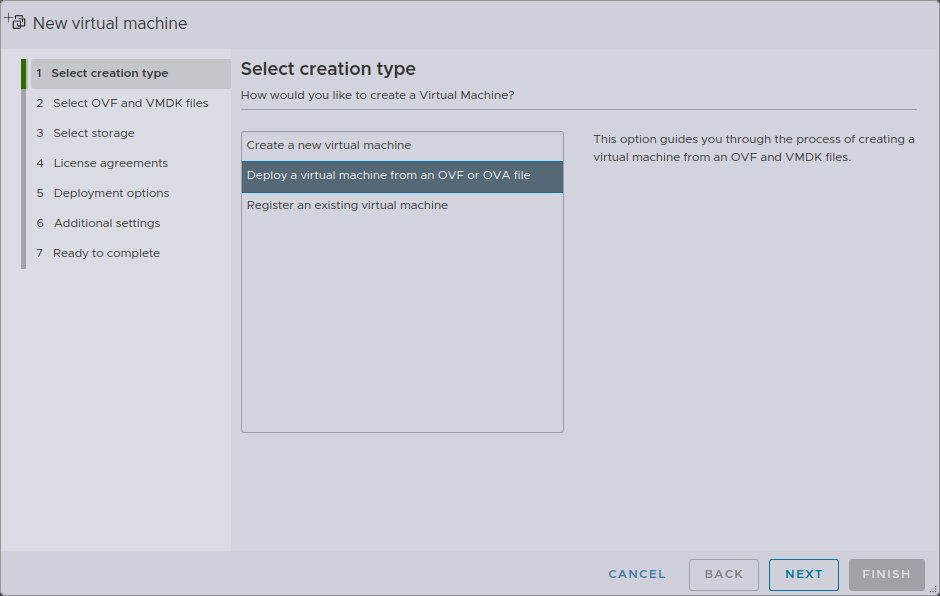
In the vSphere or ESXi interface, create a new virtual machine and select Deploy a virtual machine from an OVF or OVA file.
Name your VM - for example trapster-1. The name does not affect its network identity.
2. Upload the OVA
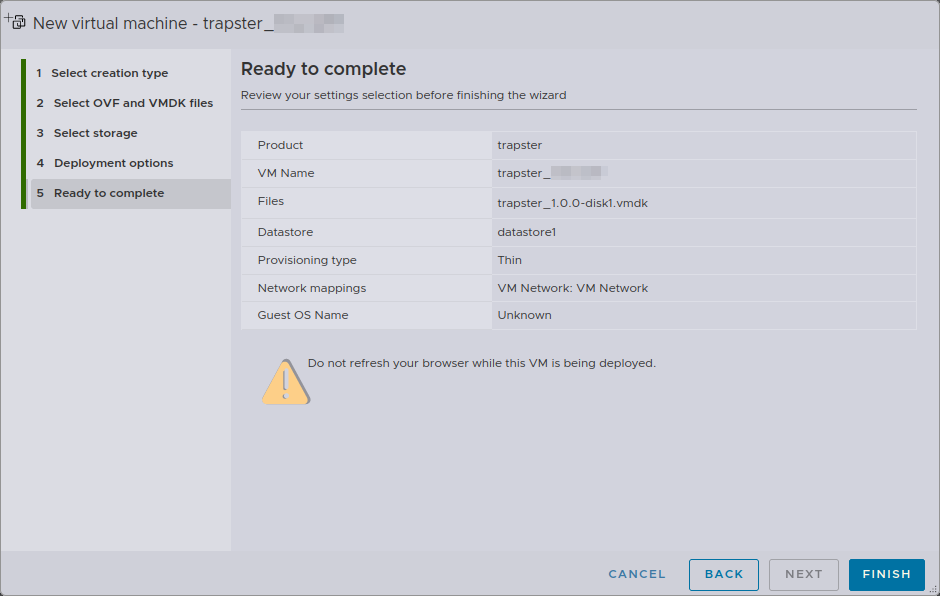
Select your downloaded OVA file and upload it. Then select your storage destination.
Click Next through the remaining steps.
3. Start the VM
Once the import completes, start the VM. It will boot and connect to your Trapster dashboard automatically.
4. Accept registration
After the Trapster boots, it appears as a pending device on the Trapsters page.
See Trapsters: accept registration.
Next steps
- Configure a static IP if DHCP is not available on your network
- Apply a configuration template from the dashboard